
Sunday, October 9, 2016
PHET.... Online Labs
How many times have you had a topic or area of curriculum that you wish could be hands on but for whatever reason it just is not feasible? I love PHET online simulations.. students feel like they are playing a game , but are in fact learning. They have simulators covering all levels of math and science! You can search by grade level, subject area, topic or device. Many of the sims even have lessons plans that go along with them that you can use as in or adapt to better fit your classroom! I do recommend previewing the sim with your students and going over with them how the site works as a class to save yourself some time and headache of individual questions.


Monday, April 27, 2015
Google Search.. Results and Beyond
Google is the favored search engine for most people. Few people know about all the extra's that are already built in! You can refine your search's by reading level, file type, search a single site and more. Check out this cheat sheet here. One feature that I like to use in the classroom is searching by grade level. This is great for differentiation it allows you to have some lower level and higher level readings. It is limited by only filtering results for three levels, basic, intermediate and advanced. Check out this step by step tutorial I created.
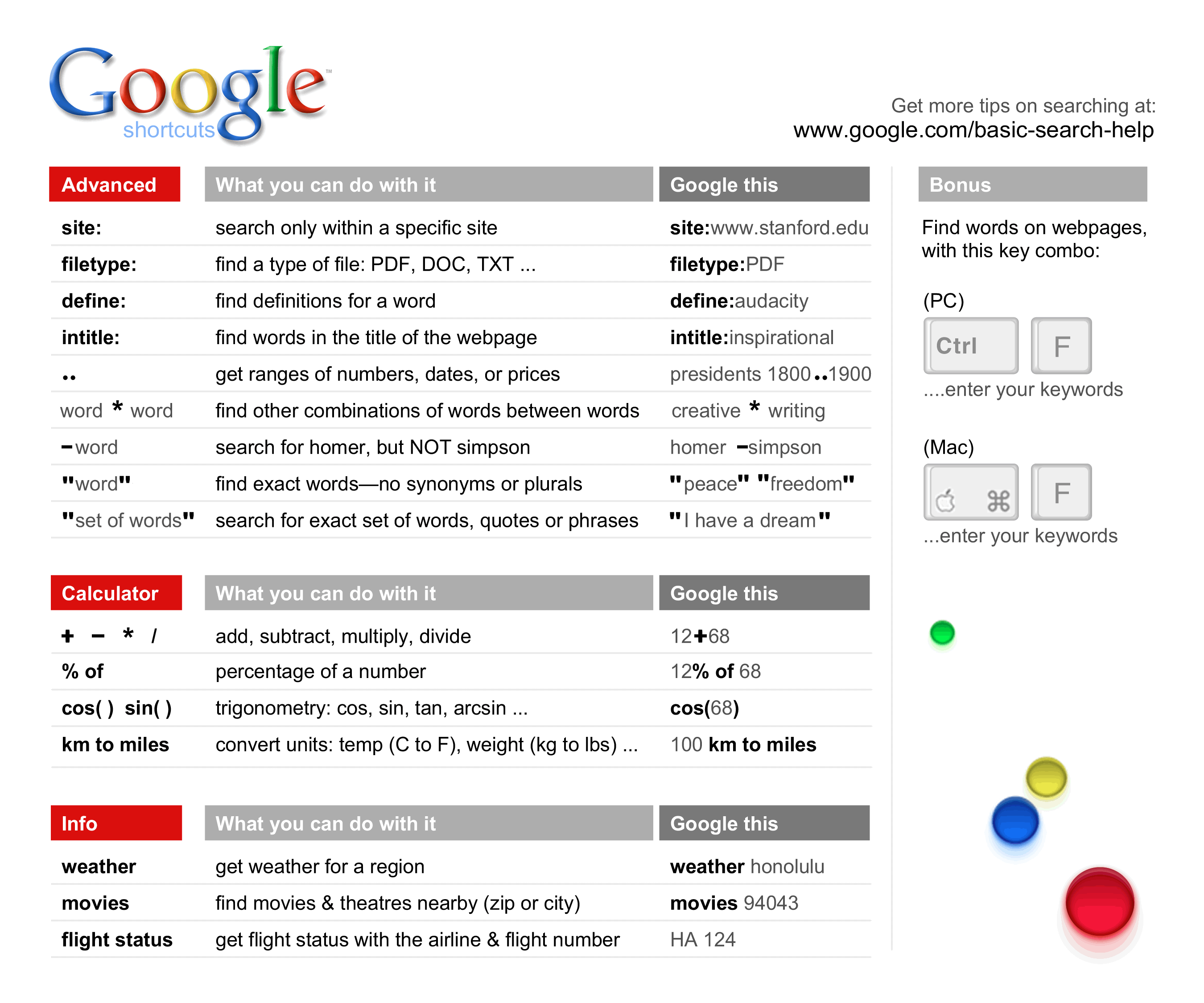
You can make your search's more specific by following these 21 Tips for getting better results!
Social Media Tools for the Classroom
When you think of social media you may think of only Facebook or Twitter, but ,may other sites would be categorized as social media.Social media is defined by WhatIs.com as the collective of online communications channels dedicated to community-based input, interaction, content-sharing and collaboration. Websites and applications dedicated to forums, microblogging, social networking, social bookmarking, social curation, and wikis are among the different types of social media.
Pinterest is one such social media site that can give you a wealth of ideas and resources. It is basically like on online pin board. Where you can bookmark websites and resources you want to remember. I find it particularly helpful when I am stuck on a lesson plan or want to find a new activity. You can also search for topics others have pinned or create your own. Check out the video below to see how to get started today.
Another great resources for keeping track of and sharing websites and resources is Symbaloo. I prefer Symbaloo for a classroom setting as it does not require a login for others to view a webmix you have shared with them. (Awesome for those student webquests.) You can create your own tiles of any website or resource you wish, and them share all of them with one simple link. Check out a webmix I have made here.
Pinterest is one such social media site that can give you a wealth of ideas and resources. It is basically like on online pin board. Where you can bookmark websites and resources you want to remember. I find it particularly helpful when I am stuck on a lesson plan or want to find a new activity. You can also search for topics others have pinned or create your own. Check out the video below to see how to get started today.
Another great resources for keeping track of and sharing websites and resources is Symbaloo. I prefer Symbaloo for a classroom setting as it does not require a login for others to view a webmix you have shared with them. (Awesome for those student webquests.) You can create your own tiles of any website or resource you wish, and them share all of them with one simple link. Check out a webmix I have made here.
Saturday, April 18, 2015
Don't agonize... Organize!!
I teacher's life is always stressful! We need all the help we can get to help organize our classroom, lessons, and lives. This weeks tips of the trade center on four websites that I have conveniently placed onto a Google Flyer for you. Check it out here.
One that I am particularly excited about trying out is PlanbookEdu. It is a cloud or internet based plan book to create and store all of your lessons plans. You can attach standards and objectives. I am super excited to start trying it out. Check out a video on it below.
For a list of handy teacher education tools check out this list created by Marcia Jeans.
One that I am particularly excited about trying out is PlanbookEdu. It is a cloud or internet based plan book to create and store all of your lessons plans. You can attach standards and objectives. I am super excited to start trying it out. Check out a video on it below.
Another totally easy and amazing time saving tool is WhenSend is a website that lets you schedule email's to send in the future. I plan on using this next year to remind students when it is their week to do the scientist of the week presentations!
For a list of handy teacher education tools check out this list created by Marcia Jeans.
Sunday, April 12, 2015
Taking Google By Storm..Using Forms!
I have blogged on Google Forms before . This week I used forms in a whole new way. I created a quiz that I could give to my students and put it into Google forms. You can check it out here.
I used several features that I have never used before and didn't realize Google forms had. For some reason I never noticed all the options under add item drop down menu. Including the option to add a picture or video.

One on the main reasons to give a test using a digital format is ease of grading. Google forms has an Add on called Flubaroo. It is amazing following these amazingly simple instructions, I was able to write the test and create the key all in under an hour. Grading was done in an instant, with just a few clicks of the mouse. Check out the video below to see a visual overview .
Don't forget to make sharing the quiz with your students fast and easy by using a tinyurl. Make it easier for your students to remember and type in. I use a personalized one for my class webpage. tinyurl.com/morasclass6
I used several features that I have never used before and didn't realize Google forms had. For some reason I never noticed all the options under add item drop down menu. Including the option to add a picture or video.
One on the main reasons to give a test using a digital format is ease of grading. Google forms has an Add on called Flubaroo. It is amazing following these amazingly simple instructions, I was able to write the test and create the key all in under an hour. Grading was done in an instant, with just a few clicks of the mouse. Check out the video below to see a visual overview .
Sunday, April 5, 2015
Learning Management Systems : The Online Classroom
This week we explored Edmodo and Schoology , both are learning management systems (LMS). Which is a fancy way of saying software used for administration, tracking, reporting and delivery of online education. (E-learning) .
I am not an online teacher, but I can see application for both of these LMS in a regular classroom. You can post resources that your students can then view or review in the classroom or at home. Students who are ill or sick can easily get and track their homework. Edmodo and Schoology both have pros and cons.
I am most familiar with Edmodo so I tended to gravitate more towards it when checking them both out. Watch this clip to get a brief overview of Edmodo.
Schoology seems to be a clear winner if you are needing an interface for students to be able to easily submit assignments from an Ipad . I also really liked schoology's resources, they were easy to search and seemed to be some really awesome stuff. Check out this clip for an overview of Schoology.
I am not an online teacher, but I can see application for both of these LMS in a regular classroom. You can post resources that your students can then view or review in the classroom or at home. Students who are ill or sick can easily get and track their homework. Edmodo and Schoology both have pros and cons.
I am most familiar with Edmodo so I tended to gravitate more towards it when checking them both out. Watch this clip to get a brief overview of Edmodo.
Schoology seems to be a clear winner if you are needing an interface for students to be able to easily submit assignments from an Ipad . I also really liked schoology's resources, they were easy to search and seemed to be some really awesome stuff. Check out this clip for an overview of Schoology.
Sunday, March 29, 2015
Twitter not just social media... Your Own Personal Learning Network
Most of us have heard of Twitter. In case you haven't...
Twitter is described by Wikipedia as "an online social networking service that enables users to send and read short 140-character messages called "tweets". Registered users can read and post tweets, but unregistered users can only read them. "
This week I discovered another side of Twitter, Twitter Chats! I was struggling to understand how they worked at first until I found this tutorial by @coolcatteacher.
Twitter is described by Wikipedia as "an online social networking service that enables users to send and read short 140-character messages called "tweets". Registered users can read and post tweets, but unregistered users can only read them. "
This week I discovered another side of Twitter, Twitter Chats! I was struggling to understand how they worked at first until I found this tutorial by @coolcatteacher.
I found a list of some planned educational chats on cybrarymans page. I found some really cool chats about education and ideas to integrate technology into the classroom. Basically you search the assigned hashtag for the chat for example #edchat , and you can see all that is being discussed and talked about.You can retweet things you want to remember or favorite things you agree with. Chats are also a good way to build your network. Other people who are interested in the same things as you will be participating in the chat. You can chose to follow them and some may even follow you back!
Sunday, March 15, 2015
The Bloggers-Sphere ; Focused on Education
I like the idea of following educational blogs. I see value in it lesson ideas, motivation, and gaining more knowledge. I am more of a find a post I am interested in read it and move on sort of person. I am not sure if that is because before I did not have an easy way to keep track of them . I am now trying to utilize Feedly . Feedly is a way to store links to and keep up with all the blogs you want to follow.

Here are 8-Tips for building your Feedly!! Tips for building your feedly
^^^ Is a RSS symbol, I had to look up what RSS stands for. RSS (Rich Site Summary) is a format for delivering regularly changing web content. Many news-related sites, weblogs andIother online publishers syndicate their content as an RSS Feed to whoever wants it.
Clicking on that symbol on a blog allows you to easily mange the things you want to follow. I found that this blog explained it best. Copywrite Blogger
Monday, October 13, 2014
Google Tools Are ...Not to Cool for School!
Google has many unique and great tools that you can use in the classroom. A few that I find to be the most useful are Google Body, now called zygote-body and Google translator.
Google Body/Zygote body would best be described as Google Earth for the body. Click here to check out Zygotebody . This awesome website explains how to use Zygote body and has links to lesson ideas.Zygote Body how to . It is also an app. which you can use it to do 3D dissections. Here is a video that explains how to use the app.
Below are links to possible lesson plans you can use with Zygot body:
Systems of the Human Body
The Human Body Corp.
Google Translator: is a free automatic translator. It works without the intervention of human translators, using state-of-the-art technology instead. Google Translate currently supports translation between 57 languages.
Google Body/Zygote body would best be described as Google Earth for the body. Click here to check out Zygotebody . This awesome website explains how to use Zygote body and has links to lesson ideas.Zygote Body how to . It is also an app. which you can use it to do 3D dissections. Here is a video that explains how to use the app.
Below are links to possible lesson plans you can use with Zygot body:
Systems of the Human Body
The Human Body Corp.
Google Translator: is a free automatic translator. It works without the intervention of human translators, using state-of-the-art technology instead. Google Translate currently supports translation between 57 languages.
In the Spanish class here students wrote notes to their
favorite teachers telling them about things they have enjoyed learning about in
class. They wrote them in Spanish, I used Google translator and entered the
words they had written then translated it from Spanish to English. It was
somewhat choppy, since English and Spanish to not speak in the same direction
if you will. I was able to piece together what they were meaning. I decided to
use Google translator to respond to my students also in Spanish. My sister in
law is Bi-lingual I had her check the return notes to make sure they made
since. They did not to her, she said it was very garbled and hard to read in
Spanish that the words it had used to translate did not really make since, but
she said that much as I had to garble it together going from Spanish to
English, it does get your basic point across but does always make use proper
grammar and make good word choices.
Sunday, October 12, 2014
My VERY OWN website!!
This week I explored the world of Google Sites, and created my very own class webpage. I am not going to lie it was QUITE a challenge for me. I tend to be a jump in and play with it until I figure it out person. Unfortunately I picked the very user unfriendly classroom template, which I do NOT recommend. Since I am stubborn I stuck it out and worked with it until I created a page I am happy with check out my site here. . The classroom template was the most confusing thing I have ever used. I would like to try to build once from scratch and see how that process goes.
FYI: If you decide you want to change your theme here are detailed directions.
Want to create your own?? This video may help.
FYI: If you decide you want to change your theme here are detailed directions.
Want to create your own?? This video may help.
Check out these sites on how to make your own classroom site. Make a classroom site
Other Examples of Classroom sites: Miss. Schoenbergers 3rd Grade Coach Allens PE Page
Sunday, October 5, 2014
Picasa from my casa to yours
Picasa is an image organizer and image viewer for organizing and editing digital photos, plus an integrated photo-sharing website. Get Picasa Here
Picasa is an amazing tool for sharing your photos with family and friends or even for having students create projects. You can edit, store and share all your photos to this site and have access to them from any internet connected device.
Youtube Who knew?
Most everyone who uses a computer has seen or used YouTube, an online video sharing site. Whether you are using it to view fun clips , motivation or educational purposes. it is an amazing tool! Make the most out of YouTube You can even edit your own videos.
A new feature I just learned about and love is Quiet Tube, it allows you to view any YouTube video without the suggested videos , ads or comments . Which makes them safe to show in class, or share on a class website.
Sunday, September 28, 2014
Take a Tour using Google Earth
This week I discovered Google Earth , I had heard of it previously but I had not even considered the possible applications to the classroom. With a quick Google search I was able to find numerous ready made lesson plans that would fit easily into my classroom and curriculum. This teacher offers suggests some other applications.
Download Google Earth Here
One feature I found to be particularly promising with its classroom applications , is Google Tours. Google Tour Builder is a web-based storytelling tool which lets you easily create and explore stories and places around the world. I made a short tour of Albert Einsteins life. Check It out here I can imagine infinite applications for tours across curricular areas, Language Arts could to a Shakespeare tour, Social Studies could give longitude and latitude lines and students could tell what they found there. Watch the video below to create your own.
Download Google Earth Here
One feature I found to be particularly promising with its classroom applications , is Google Tours. Google Tour Builder is a web-based storytelling tool which lets you easily create and explore stories and places around the world. I made a short tour of Albert Einsteins life. Check It out here I can imagine infinite applications for tours across curricular areas, Language Arts could to a Shakespeare tour, Social Studies could give longitude and latitude lines and students could tell what they found there. Watch the video below to create your own.
Sunday, September 14, 2014
Do You Drive? Google Drive that is...
This week we got into the meat of Google's Drive.
Google Drive is a cloud storage service that allows you to store your documents, photos, videos, and more online. From Drive, you can also use Google Docs, Google Sheets, and other applications to create and edit various types of files. Google Drive and Docs.
This means as long as you have access to the internet you have access to your files no matter where you are in the world!
Do not have Microsoft office? You can still create word documents, presentations (similar to power point), even spreadsheets and forms! For a quick overview check out this video.
Please take my How are you feeling about Google? quick survey created using Google forms. Learn how to create your own Google form my checking this out.
Google Drive is a cloud storage service that allows you to store your documents, photos, videos, and more online. From Drive, you can also use Google Docs, Google Sheets, and other applications to create and edit various types of files. Google Drive and Docs.
This means as long as you have access to the internet you have access to your files no matter where you are in the world!
Do not have Microsoft office? You can still create word documents, presentations (similar to power point), even spreadsheets and forms! For a quick overview check out this video.
Feeling unsure want some additional info and training ? Basic training on Drive
There are many cool ways that Google Drive can enhance learning in the classroom, check out this presentation created in Drive's presentation.40 Ways to Use Google Apps for Education
Google Drive is also Ipad and IPhone compatible! It is a great tool to be able to sync all your information across your different systems. Even if your prefer your IPhone but still love you PC.
Please take my How are you feeling about Google? quick survey created using Google forms. Learn how to create your own Google form my checking this out.
Sunday, September 7, 2014
Getting a Google account and G-mail in all its Glory
If you do not have a Google account you need one now!! The Google account you create will also your g-mail address. If you already have a g-mail account that is your account as well.
Now that you officially have your own account lets talk G-mail, My main personal email is still at hotmail.com, I have had it for probably fifteen years and never even considered what I may or may not be missing by staying with it. Today the heavens parted and I heard the angels singing, as I discovered all that G-mail can and wants to do for me. I will highlight a few of the most awesome features.
Undo:That's right g-mail has an undo button! You accidentally send and email before your done..or maybe reconsider the wording, realize you did not spell check.. If you have the undo feature turned on a little button pops up and give you an extra 10 seconds to stop if from being sent, and it reverts back to a draft. Click on the video below for steps on how to start undoing things.
Todo List: We all have busy lives, we work, have families and more! How can we remember everything we need.have to do? Create a to-do list using your g-mail account.
There is so many more things that G-mail can do check out an overview here.
Sunday, August 31, 2014
Google Chrome ..The Browser You didn't know you wanted...
Subscribe to:
Posts (Atom)